
Interface Invocation with IConduct API
IConduct API allows executing interfaces via API calls, which allows you to pass additional parameters/schema values in the payload. To run your interfaces on IConduct API manually, you need to download and install API testing software, such as Postman and complete the following.
1. Allow interface to run on API
Before conducting an operation of running an interface on IConduct API, please, make sure that the interface in question is allowed to do so. For that, activate Allow Run on API feature found on the Scheduler tab of the interface creator or editor.
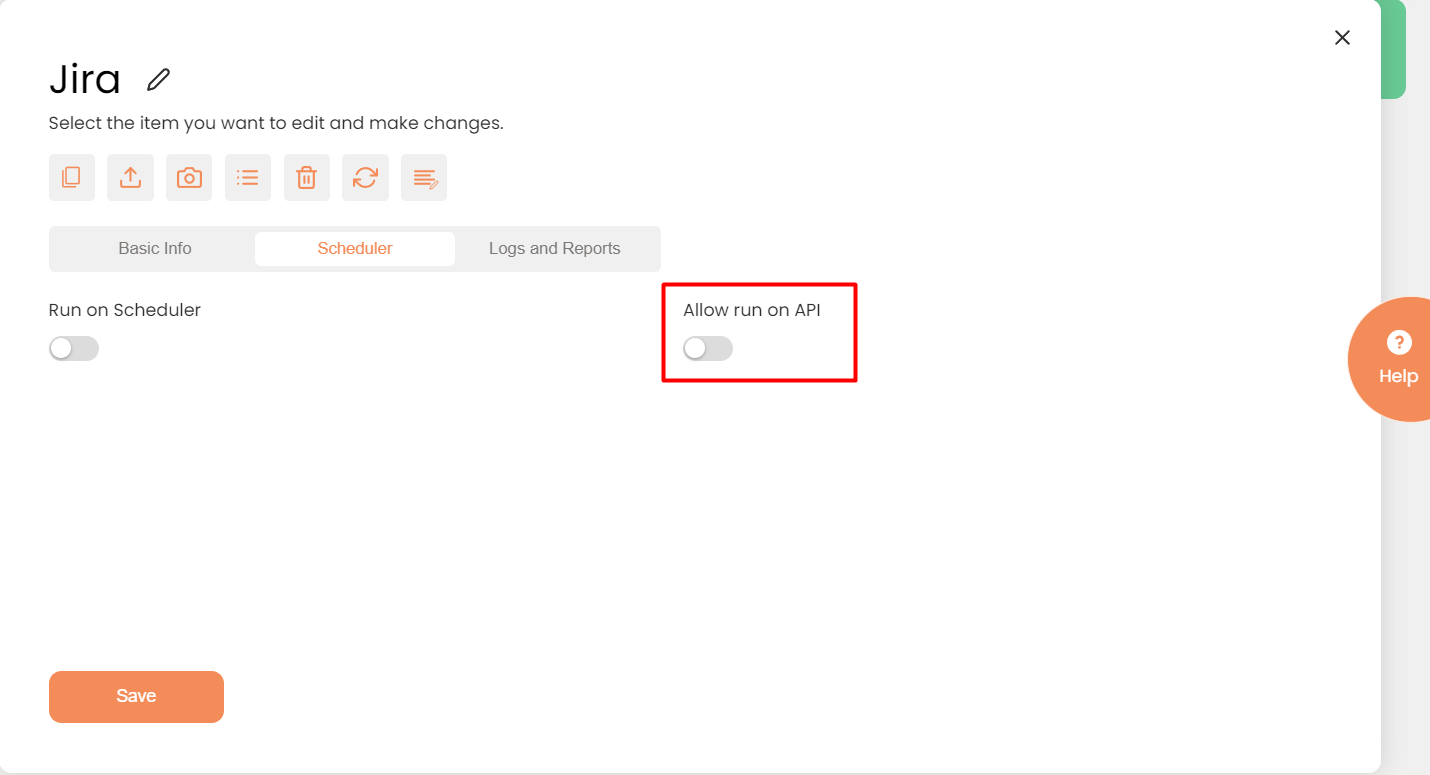
Interface settings in the IConduct system
2. Authorization
After the interface is allowed to be run on IConduct API, you need to authorize with your username and API token using the Postman software. You can retrieve the required details from the IConduct tool and paste them in the corresponding fields in Postman.
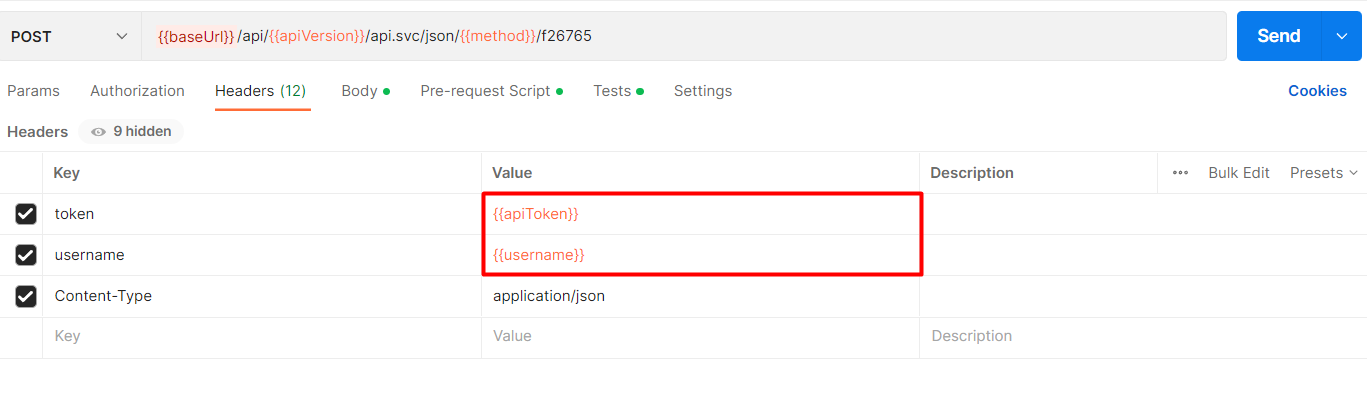
API Token and Username fields in Postman
Use the username you use for the IConduct system authorization. To retrieve the API Token:
- Go to Users in the IConduct system.
- Select the user you need to authorize.
- Press Reset API Token. A message with a new token will pop up.
If you need to use the token repeatedly, make sure you have the token saved. Otherwise, every time you press Reset API Token, the old token will be replaced by a new one, which disrupts the process of the interfaces running on IConduct API.
- Paste the token into the token header in your API request.
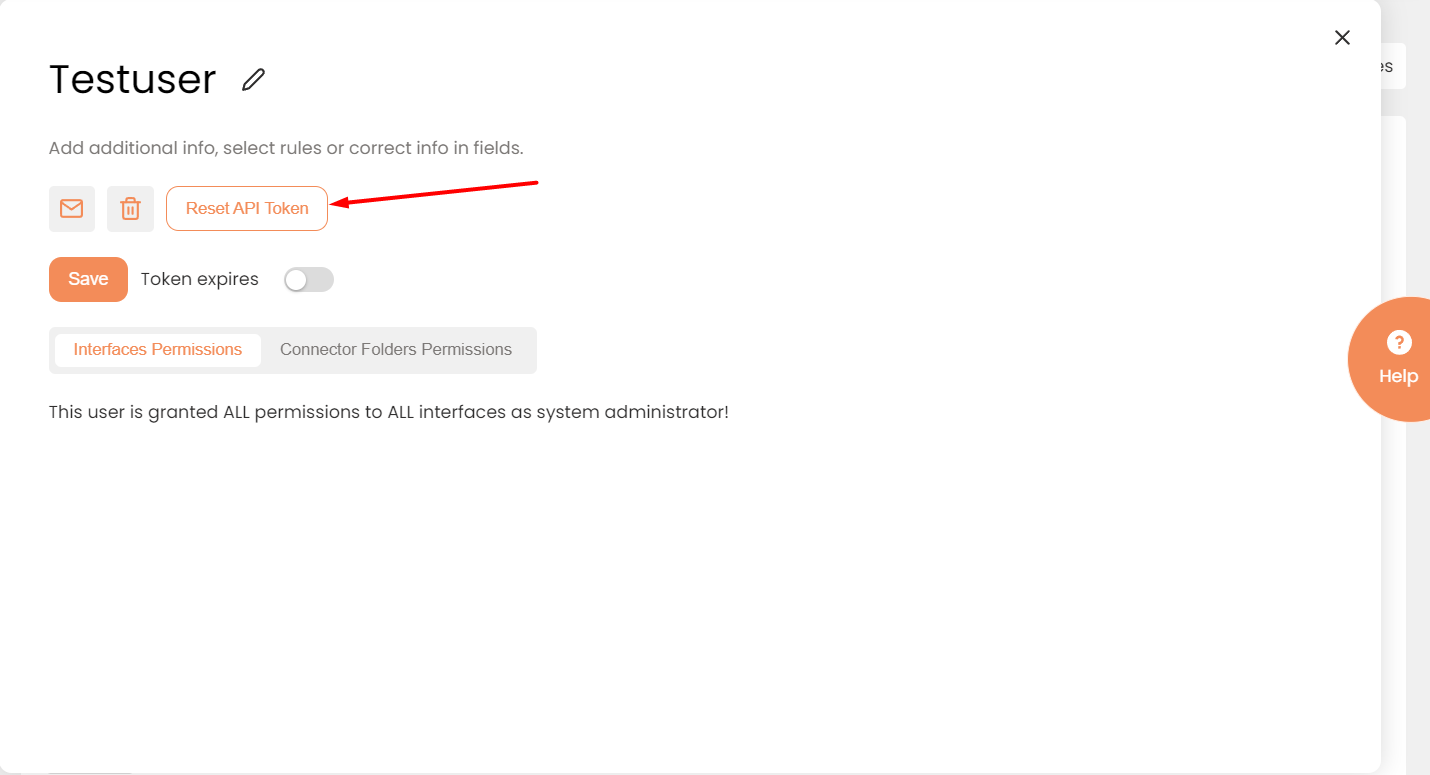
Retrieving the API Token in the IConduct system
3. Creating a New HTTP Request
To execute an interface using IConduct API, create a new HTTP request in Postman. Select the POST method and enter the following request:
{{baseUrl}}/api/{{apiVersion}}/api.svc/json/{{apiFunction}}/ {{interfaceProcessID}}.
For example:
https://test3.iconductcloud.com/api/v11/api.svc/json/ExecuteWithJsonAndGetJsonResult/x23632

Creating a POST request in the Postman interface
You can find the interface process ID in the editing window of the interface.
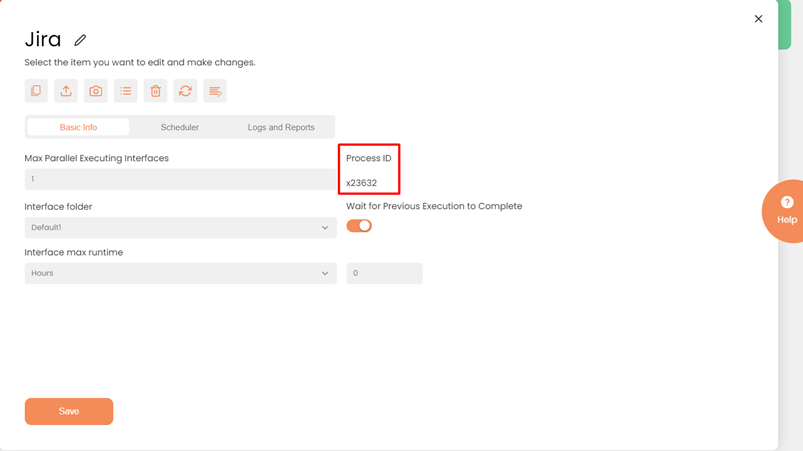
Retrieving the interface process ID
URL Format
The URL format includes the following elements:
| Element | Purpose |
|---|---|
|
baseUrl |
URL leading to the environment where your interface is located. |
|
apiVersion |
The version of API to which the call will be made. The latest version is v11. |
|
apiFunction |
The execution method. Available API functions are described in detail below. |
|
interfaceID |
The ID of an interface that is to be executed. |
Response
The response to an IConduct API call will be a message that outlines the result of the execution. The result will be shown in the Response section as a transaction result, just as it would have been shown in the system.
The default API call timeout is 100 seconds.
IConduct API functions
There are five execution methods available in IConduct API.
| Synchronous methods | |
|---|---|
| Method | Description |
| Execute | Executes interfaces regularly, just as if they were executed directly from the IConduct system. |
| ExecuteAndGetResult | Works only for the Return Schema to Web Service step. It returns the specifically indicated (mapped) schema columns in the step. |
| ExecuteAndGetJsonResult | Facilitates the execution of interfaces, specifically for the Return Schema to Web Service step. This method returns the results in a JSON format. It requires the creation of a Return Schema to WS step in the interface to properly handle and process the request and response. The ContentStorage header in the request body is also required. |
| ExecuteWithJSONAndGetJSONResult | Contains a column name (dataColumnName), from which the request body will be retrieved, and a column name (ContentStorage), into which the data will be sent and parsed. To execute this request, the Return Schema to WS step is required as well as the ContentStorage header in the request body. |
| Asynchronous methods | |
| Method | Description |
| ExecuteAsync | Executes interfaces immediately without waiting for the server to respond. |
Execution Conditions
All execution methods are applied to interfaces under certain conditions, being able to accept different input and provide different output data.
| Condition | Description |
|---|---|
| Execute without body | The aim of this condition is to execute the interface without the schema or parameter payload. This API call is equivalent to the manual interface execution via the IConduct user interface. |
| Execute with schema | Using API call with the schema payload, the interface is executed along with the schema. The payload will be automatically parsed into the relevant schema columns. |
| Execute with parameters | Using API call with the parameter payload, the interface is executed along with the parameter. The values from parameter payload will be automatically set in the invoked interface’s parameters. |
| Execute with parameters and schema | This condition is a combination of the previous two conditions, which allows setting both interface parameters and the first task schema values. |
Examples of the request body under every condition are provided below.
Request body examples
Execute with schema request example:
{
"schema":[
[
{"Key":"value1", "Value": "{{$randomWord}}"},
{"Key":"value2", "Value": "{{$randomWords}}"}
]
]
}
Response example:
{
"ExecutionStatus": "Success",
"Message": "Success",
"StartTime": "2024-01-31 14:19:51",
"EndTime": "2024-01-31 14:20:01",
"Schema": [
{
"ResponseValue": "123 - second"
}
]
}
Execute with parameters and schema example:
{
"parameters": [
{
"Key": "_parameter1", "Value": "302"
},
{
"Key": "_parameter2", "Value": "{{$randomWords}}"
}
],
"schema":[
[
{"Key":"value1", "Value": "{{$randomWord}}"},
{"Key":"value2", "Value": "{{$randomWords}}"}
]
]
}
Response example:
{
"status": "success",
"message": "Execution completed successfully",
"data": {
"value1": "302",
"value2": "generated_random_words_2"
}
}
Request with parameters only example:
{
"parameters": [
{
"Key": "_parameter1", "Value": "302"
},
{
"Key": "_parameter2", "Value": "{{$randomWords}}"
}
]
}
Response example:
{
"status": "success",
"message": "Execution completed successfully",
"data": {
"value1": "302",
"value2": "value_for_parameter2"
}
}
Multiple rows insert into schema:
{
"parameters": [
{
"Key": "Param1",
"Value": "123"
},
{
"Key": "Param2",
"Value": "456"
}
],
"schema": [
[
{
"Key": "Column1",
"Value": "first"
},
{
"Key": "Column2",
"Value": "second"
}
],
[
{
"Key": "Column1",
"Value": "third"
},
{
"Key": "Column2",
"Value": "forth"
}
]
]
}
Response example:
{
"ExecutionStatus": "Success",
"Message": "Success",
"StartTime": "2024-01-31 14:19:20",
"EndTime": "2024-01-31 14:19:20",
"Schema": null
}